 Sign inSign up
Reading the home page
The first page after you sign in. Nothing on it is decoration — each block answers one question.
1The four numbers
Just under the greeting are four counts. They are read from your own data, not placeholders.
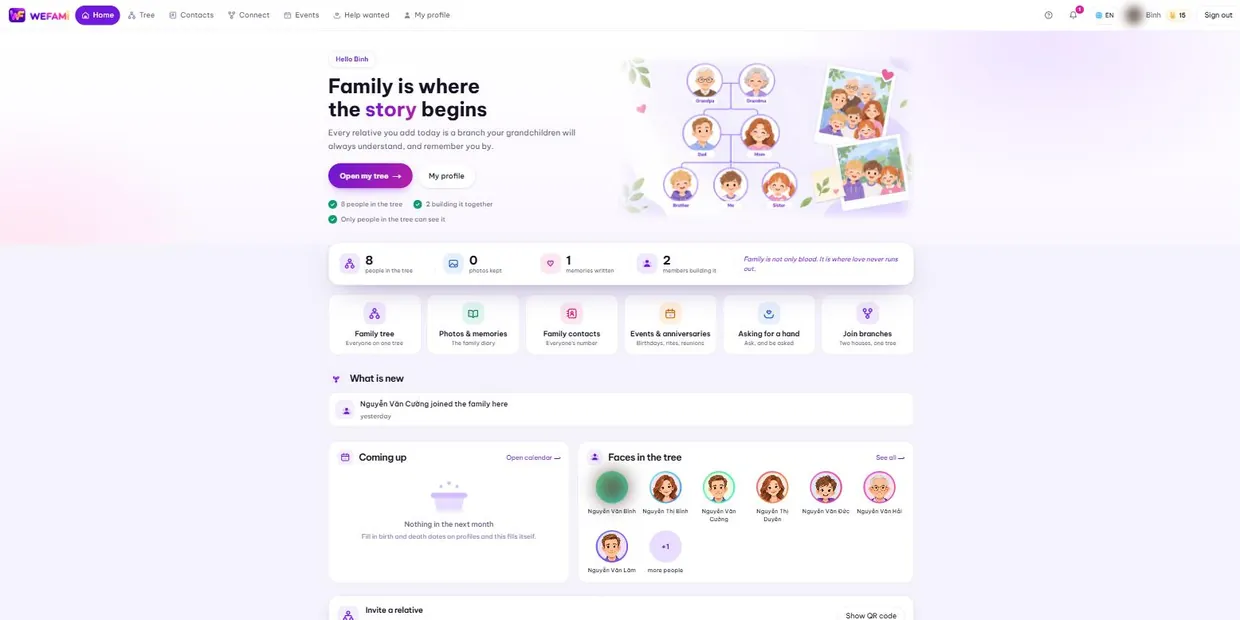
- People in the tree — every profile you are allowed to see.
- Photos kept — pictures across every profile album.
- Memories written — posts in the family diary.
- Members building it — people who opened an account and are entering data with you.
2The six shortcuts
The six coloured tiles are quick routes to the six most common tasks. They repeat the top navigation bar on purpose — someone new has not learned that bar yet.
3What is new
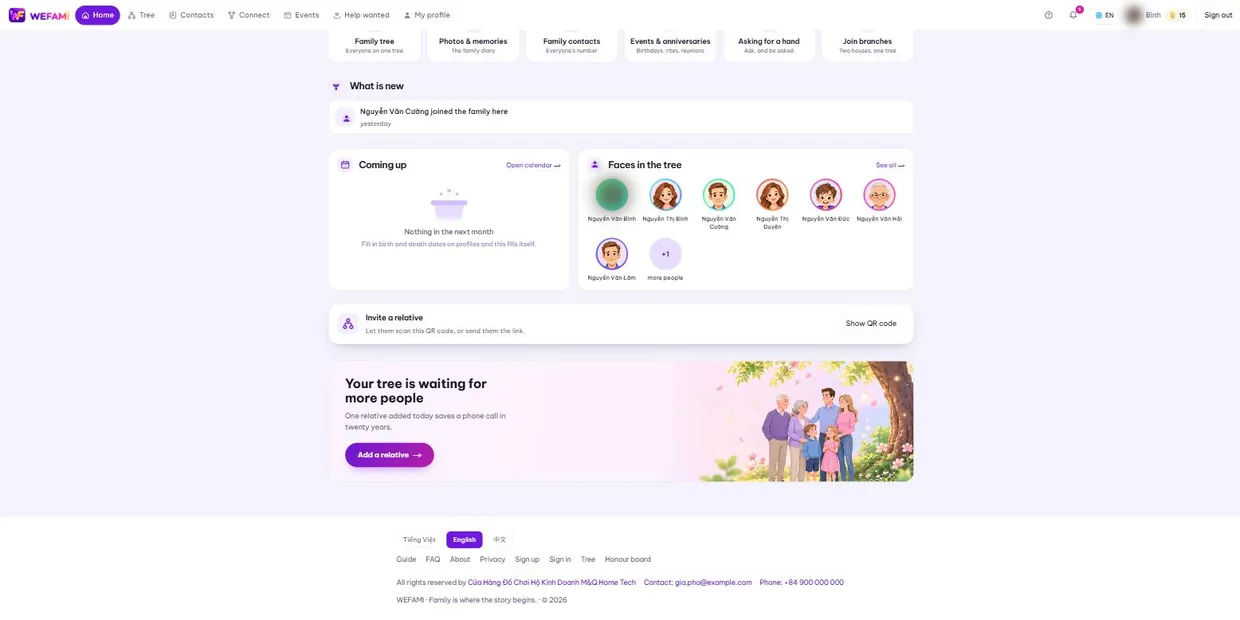
The last thirty days, gathered from four places: someone was added to the tree, someone opened an account, someone wrote a post, someone asked for a hand.
This list is already filtered by what you may see. Anything you have no permission for never reaches this list at all, rather than appearing and then refusing to open.
4Coming up, and faces in the tree
The left column lists birthdays and memorial days in the month ahead. Empty means no profile has a date yet — fill dates in and this fills itself.
The right column is a row of faces. A profile with no photo gets a drawn portrait chosen by sex and age, so one glance tells you how many generations are in the tree.
Support
Stuck on anything, however small, just write. Nothing is a silly question the first time you use something.
Calling during Vietnamese office hours is quickest; outside those hours write instead and you will hear back the next working day.
For a bug, please say: which page you were on, what you clicked when it broke, and whether you are on a computer or a phone. A screenshot helps. Never send your password — we will never ask for it.